October 8, 2026
How to translate a PDF without losing formatting
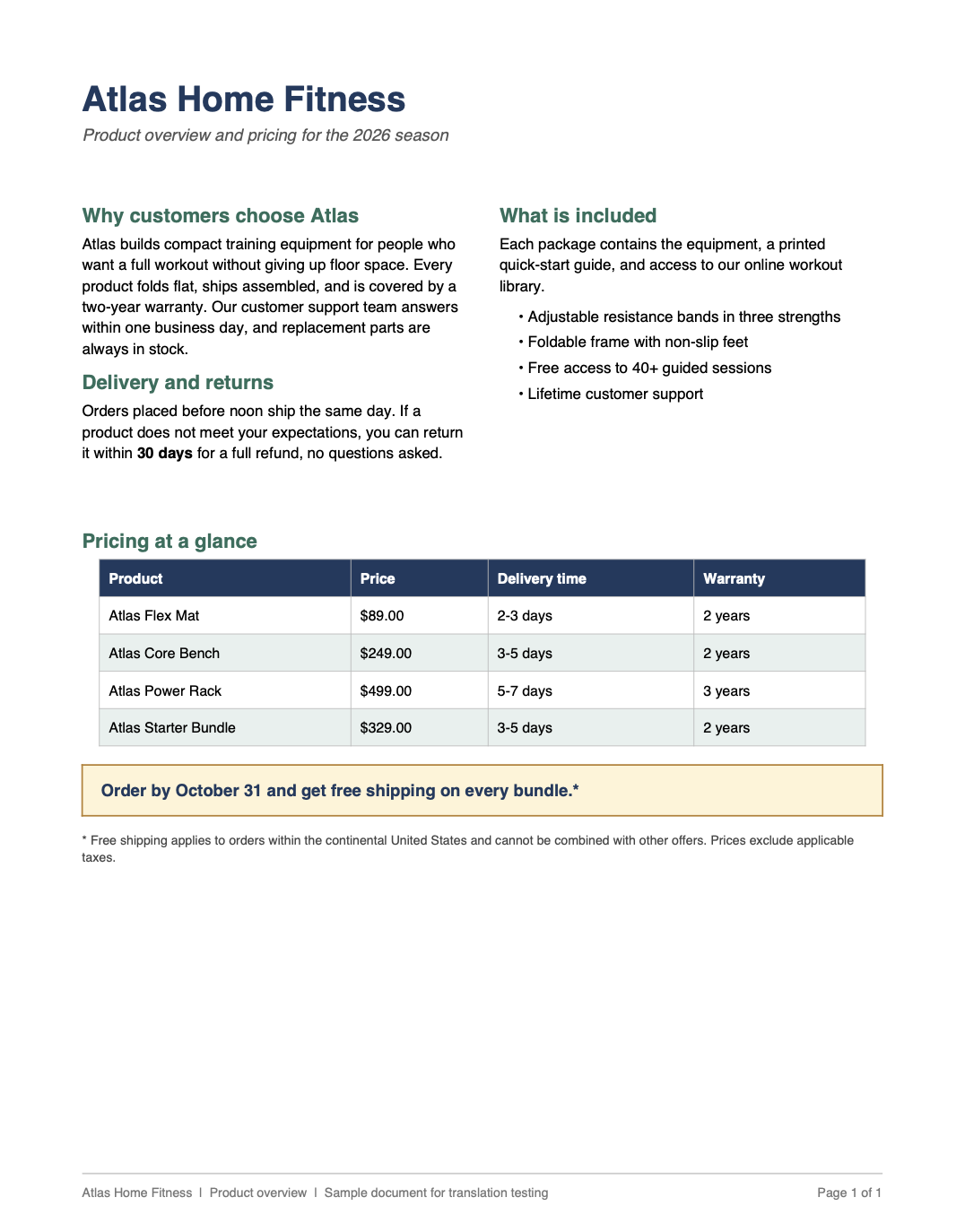
Upload the PDF itself instead of converting it or copying its text, then check five small details against the original. In our English-to-German test, the two columns, the pricing table, and the callout box all held. The misses were small styling details, and each is visible with the original open beside it.
A Reddit thread that ranks near the top of this search answers it by telling you to export the PDF to Word, translate that, and fix the formatting by hand.
The other common route is pasting the text into a chatbot, and that one has numbers behind it. In our benchmark of 50 marketing PDFs, pasting a PDF into a general-purpose chatbot returned a block of text with the tables and columns gone. It reached 98% contextual accuracy, but it needed an average of 45 minutes of reformatting per 10-page document. A design-first tool kept the visual layout in 92% of cases but produced too-literal translations in 28%.
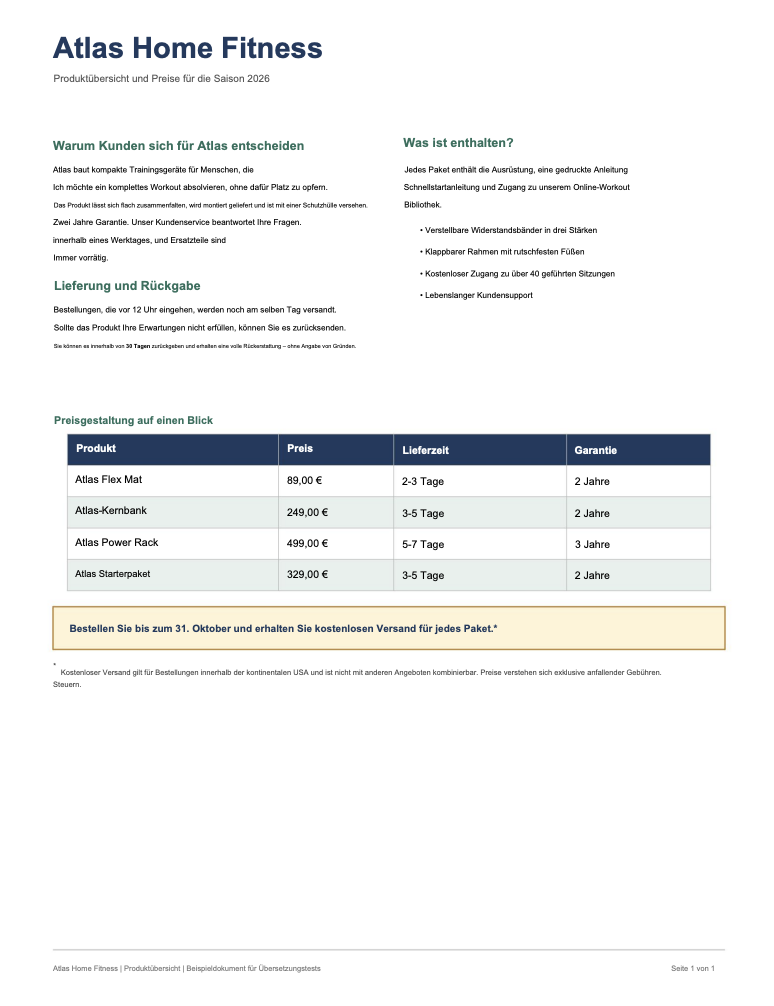
So we tested the shortcut. We built a one-page PDF meant to put pressure on a layout, with two columns, a table, a callout box, a footnote, and a footer, and translated it from English into German with 8 AI models. Below are the exact steps, what came back, and the five details to check on any translated PDF.
What to know before you upload
- Upload the PDF itself. Copying its text or converting it first adds steps where the layout can break.
- In our test the structure held: two columns, a pricing table, a callout box, and the footer all survived English to German.
- Scanned PDFs depend on OCR, so check every number, date, and name against the original.
- For filings and certified use, add a human review.
Do you need to convert a PDF to Word before translating it?
Not if the tool translates the file itself instead of the text pulled out of it. A PDF does not store paragraphs, columns, and tables the way a Word file does. It stores where each piece of text sits on the page, so a tool that only sees the text has nothing telling it which line belongs to which column.
The convert-first habit exists for a good reason, because Word gives the text a structure to hold onto. Conversion has its own failure modes, though, and you inherit them before the translation starts. Here is how the three common routes compare.
Three ways to translate a PDF
| Route | What you do | Where it tends to break | Where your time goes |
|---|---|---|---|
| Convert to Word first | Export the PDF to Word, translate, export back to PDF | Two extra conversions, each a chance for the layout to shift | Fixing the Word file, then re-exporting |
| Copy and paste the text | Select the text and paste it into a translator | Columns, tables, styles, and images are left behind | Rebuilding the document from scratch |
| Upload the PDF to a document translator | Upload the file, pick the languages, download the result | Depends on the tool, so compare the output with the original | A short review, covered below |
If your source is already a Word file, the job is simpler, and we walk through it in our guide to translating a Word document.
How do you translate a PDF without changing the format?
Six steps, tested on the one-page sample described above.
Step 1: Check what kind of PDF you have
Try to select a sentence with your cursor. If the text highlights, you have a digital PDF and everything below applies directly. If the page behaves like a photo, it is a scan, and the scanned PDF section further down is the one you need. Our test file is digital.
Step 2: Upload the PDF itself
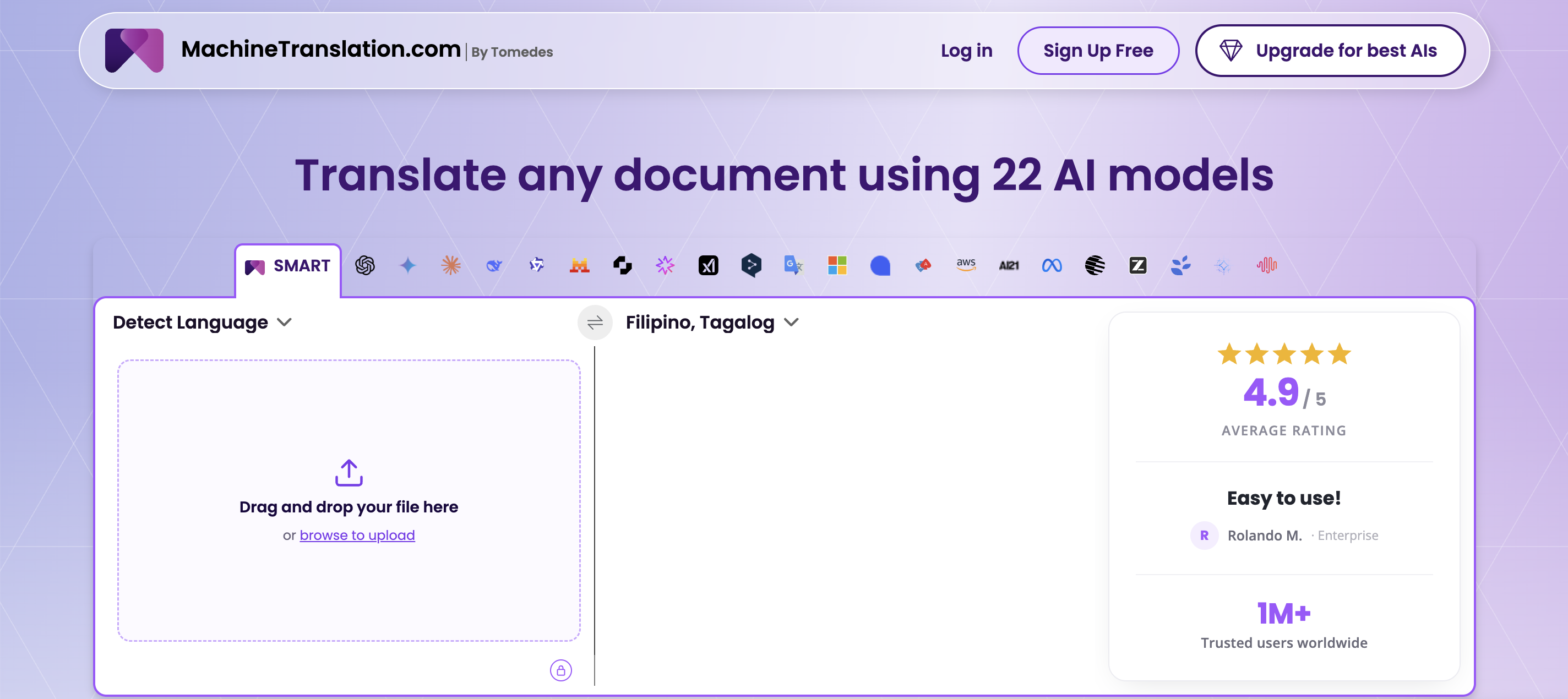
Open the Document translation page and drop the file into the upload box, or use browse to upload. Upload the PDF, not text you have copied out of it. Copying leaves the columns, tables, and styles behind before the tool ever sees them. MachineTranslation.com accepts files up to 70MB across PDF, Word, Excel, PowerPoint, text, CSV, subtitle, HTML, and image formats, so a long report goes in the same way a one-page flyer does.
Step 3: Choose the language pair
Leave the source on detect unless the document mixes languages, then set the target. We chose English to German because German can run about 30% longer than English, a figure we also cited in our benchmark post, which leaves translated text less room. On this particular page the table labels turned out shorter in German, so the real squeeze showed up in the callout box and the footnote.
Step 4: Let the models run, then read the preview with the right expectations
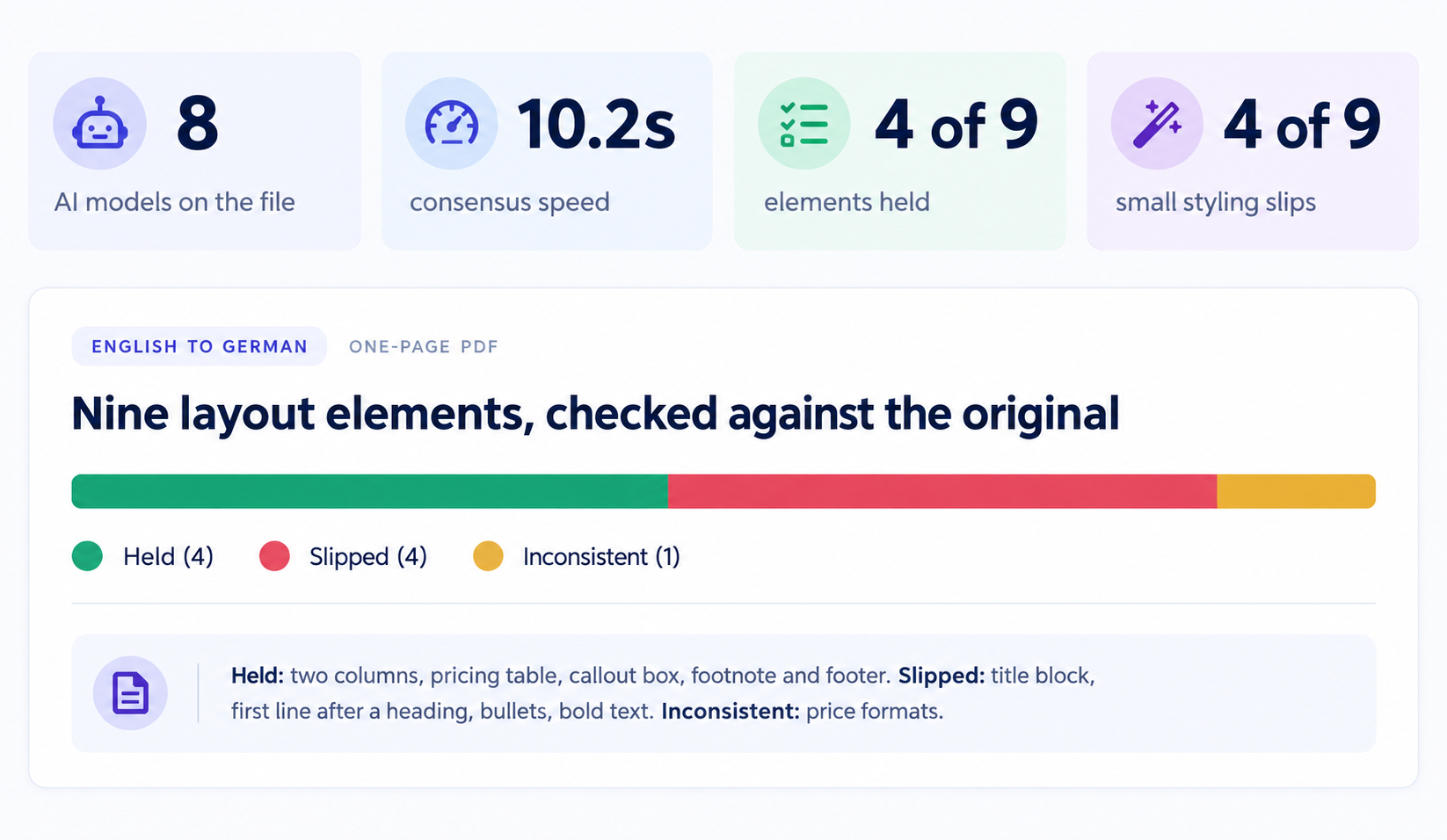
On our page, eight models worked on the file and the consensus came back in 10.2 seconds. The text preview of a two-column PDF can look scrambled. A PDF records where text sits on the page, not the order a person reads it, so a tool reading straight across the page mixes the columns together.
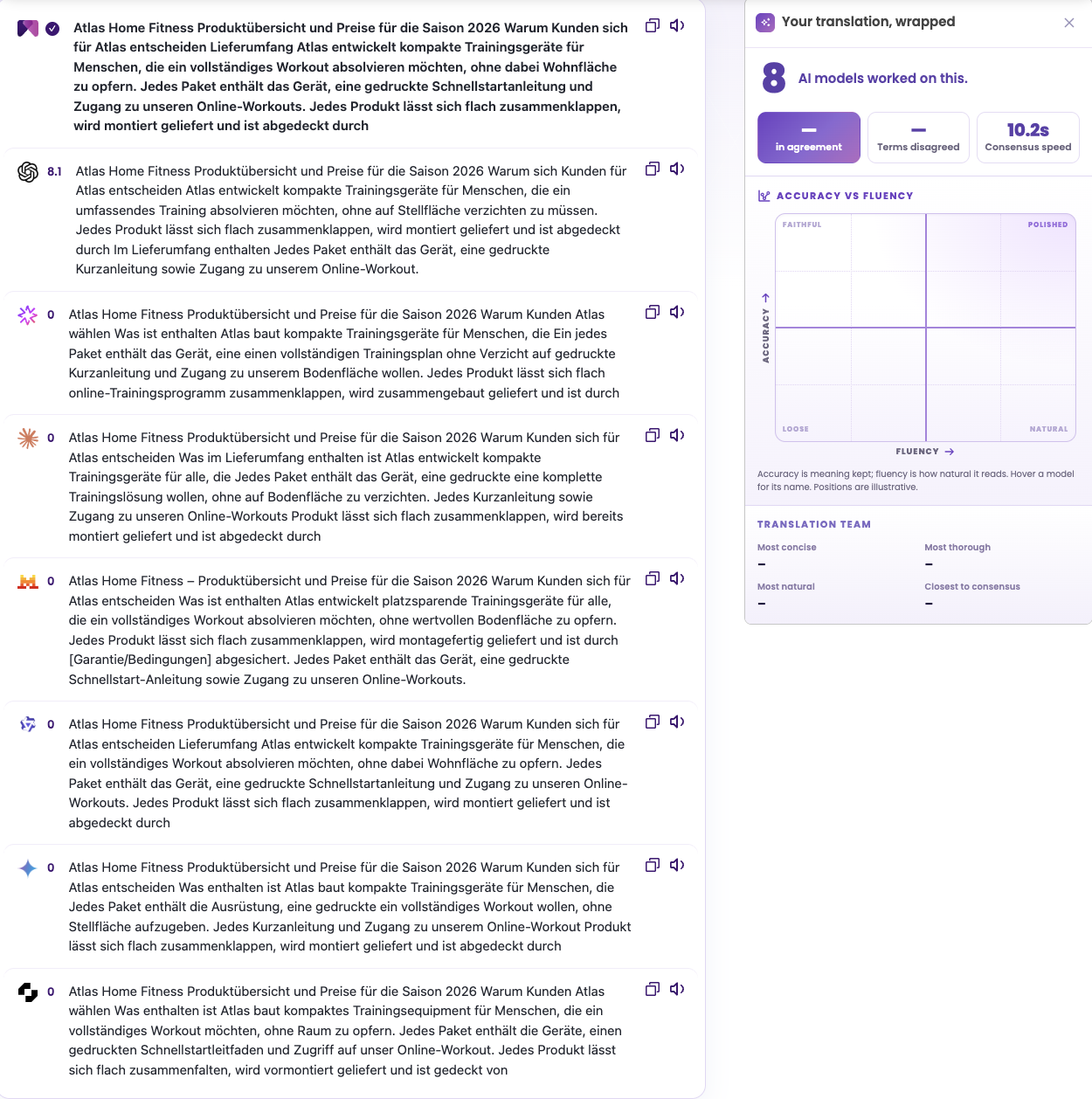
The raw model outputs inherit some of that. One model wrote a bracketed placeholder, [Garantie/Bedingungen], where the source says the product is covered by a two-year warranty. The consensus result left it out. By the time the file was ready, the German text had the columns back in order and read “ist durch eine zweijährige Garantie abgedeckt.” Comparing several outputs side by side is how a gap like that gets caught instead of one guess going straight into your file.
Step 5: Download the result and compare it with the original
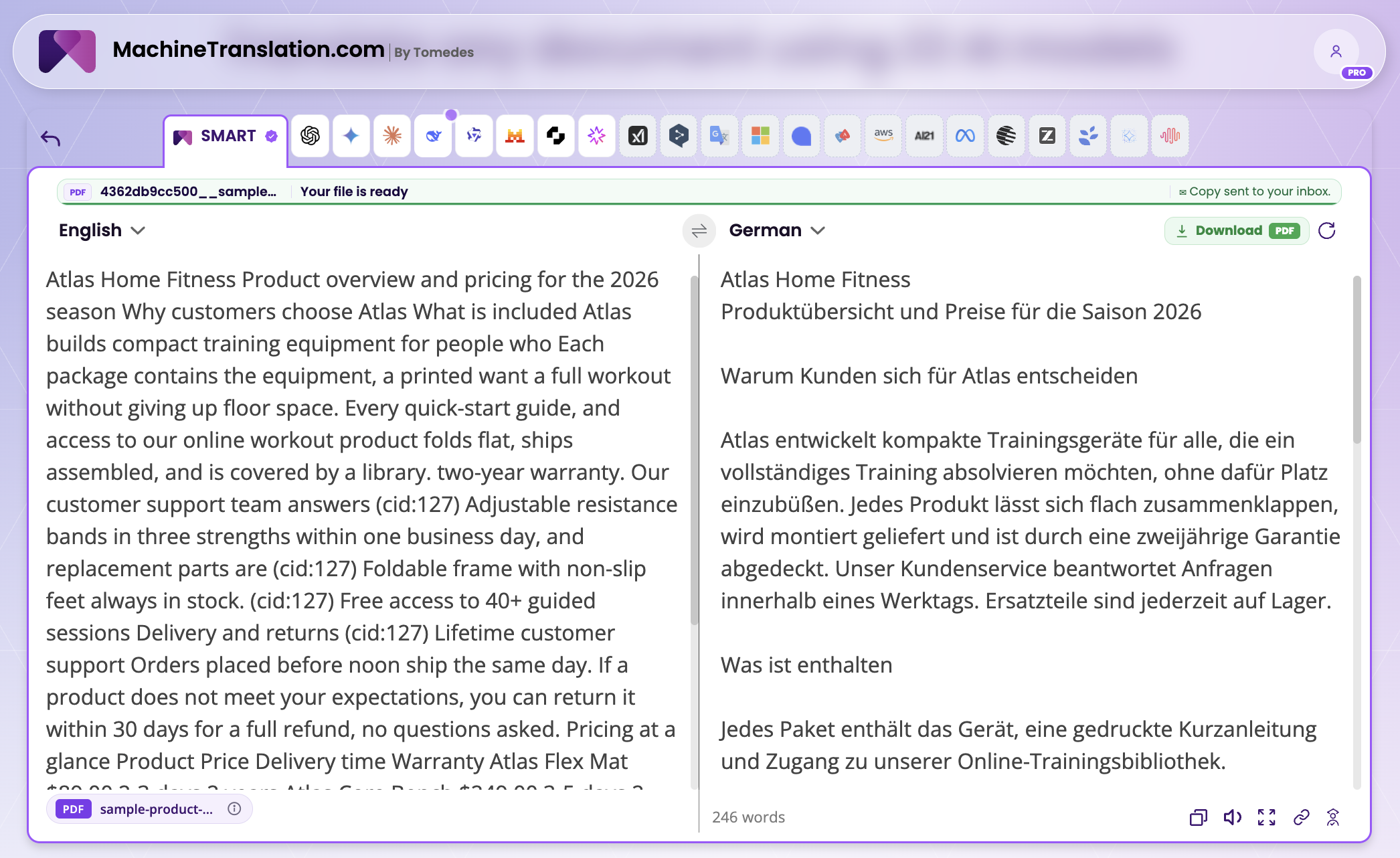
When the file is ready, a banner says so and a copy is sent to your inbox. The download button read PDF, so the translated file comes back as a PDF with no Word detour. Open it next to the original and compare the two page for page.
Step 6: Fix what slipped, or ask for it
For a few small fixes, any PDF editor will do. For anything bigger, the delivery email invites you to reply with layout or formatting changes.
What survived the test, and what did not?
We compared the downloaded German PDF with the original, element by element. The big structural pieces held.
Element by element
| Element | In the German PDF | Result |
|---|---|---|
| Two-column body text | Both columns kept, green headings intact | Held |
| Pricing table | Header color, row shading, borders, and all four columns kept, with the labels translated (Produkt, Preis, Lieferzeit, Garantie) | Held |
| Callout box | Border, fill, and bold text kept. The longer German sentence fits on one line | Held |
| Footnote and footer | Both translated and kept in small type, with “Seite 1 von 1” | Held |
The structure survived: the columns, the table, the box. None of them changed what the text says, though one product name was translated when you may have wanted it left alone, and each is visible with the original open beside it.
One caution: the table cells in our sample were short, so this page does not show how a table with sentence-length cells would behave. If yours has them, test that case first.
Here is the checklist we would run on any translated PDF:
Five checks after you download
- Title and subtitle: do they still read as two separate lines at the top?
- The sentence after each heading: did it pick up the heading's style?
- Lists: is there one item per line?
- Bold and italic inside sentences, especially dates, quantities, and warnings.
- Numbers, currency, and product names: one format across the page, with names translated only where you want them translated.
On the prices, decide up front whether they should stay in US format. Either choice works. The mix is the problem, because 249,00 $ sitting next to $499.00 invites a second look from every customer who reads it.
How do you translate a scanned PDF?
A scanned PDF is a picture of a page, so there is no text to select. Before anything can be translated, the words have to be read out of the image, which is what OCR does. The Document translation page states that MachineTranslation.com reads the text in scanned PDFs with OCR before translating, so the upload steps are the same as above.
What changes is how much weight the review has to carry. OCR can only read what the scan shows clearly, and a skewed, shadowed, or low-resolution page gives it less to work with. Scan flat, scan straight, and use a resolution you can read comfortably on screen. Then check every number, date, and name against the original, because a single misread digit changes the meaning without looking wrong.
Is there a way to translate an entire PDF document automatically?
Yes, and it is the same upload as above. Send the whole file, up to 70MB, and you get one translated file back.
Behind the scenes, translated sections are rebuilt into the file's own structure as they finish, instead of waiting for the entire document to complete first. That is the approach behind our faster downloads, which cover PDF, Word, and image files.
For a sense of scale, in an earlier live test a 519-word Word file went from upload to download-ready in about a minute, with headings, bold text, and an embedded logo image kept in position. A Word file holds its structure inside the file, which makes it the easier case. A PDF only records where text sits on the page, which is why the PDF test above is the harder one.
“Phrase accuracy and document accuracy are related but not the same problem... A tool that scores 9.5 on a sentence can still produce an inconsistent document if it lacks the architecture to maintain context across length.” - Shashank Jain, Tech Lead at Tomedes, in What accurate AI translation actually means
A PDF adds a second layer to that problem, because the document is also a layout. I'd run the same check on a long PDF, on a few representative pages instead of every page: the first page, a page with a table, and a page with a list.
When should someone review the translated PDF?
If the PDF is going to a court, a government office, a bank, or a client who will rely on it, have a person review it. The Document translation page notes that for legal filings, medical records, and certified documents, Human Verification adds a qualified professional to review the output.
Some institutions also require a certified translation specifically, and a reviewed machine translation is a different thing from a certified one, so check what the receiving office accepts before you start. For a brochure, a menu, or an internal report, the checklist above is usually all it needs.
Consensus took about ten seconds on a page like ours. You can upload your PDF and run the same comparison on your own file.

By William Mamane
Connect on LinkedInWilliam leads marketing and growth at Tomedes, where he turns SEO experiments and real campaign data into the strategy behind MachineTranslation.com's reach. He writes about how AI products actually get found and trusted plus the tactics that work, the ones that don't, and what search is rewarding right now.
Share:


